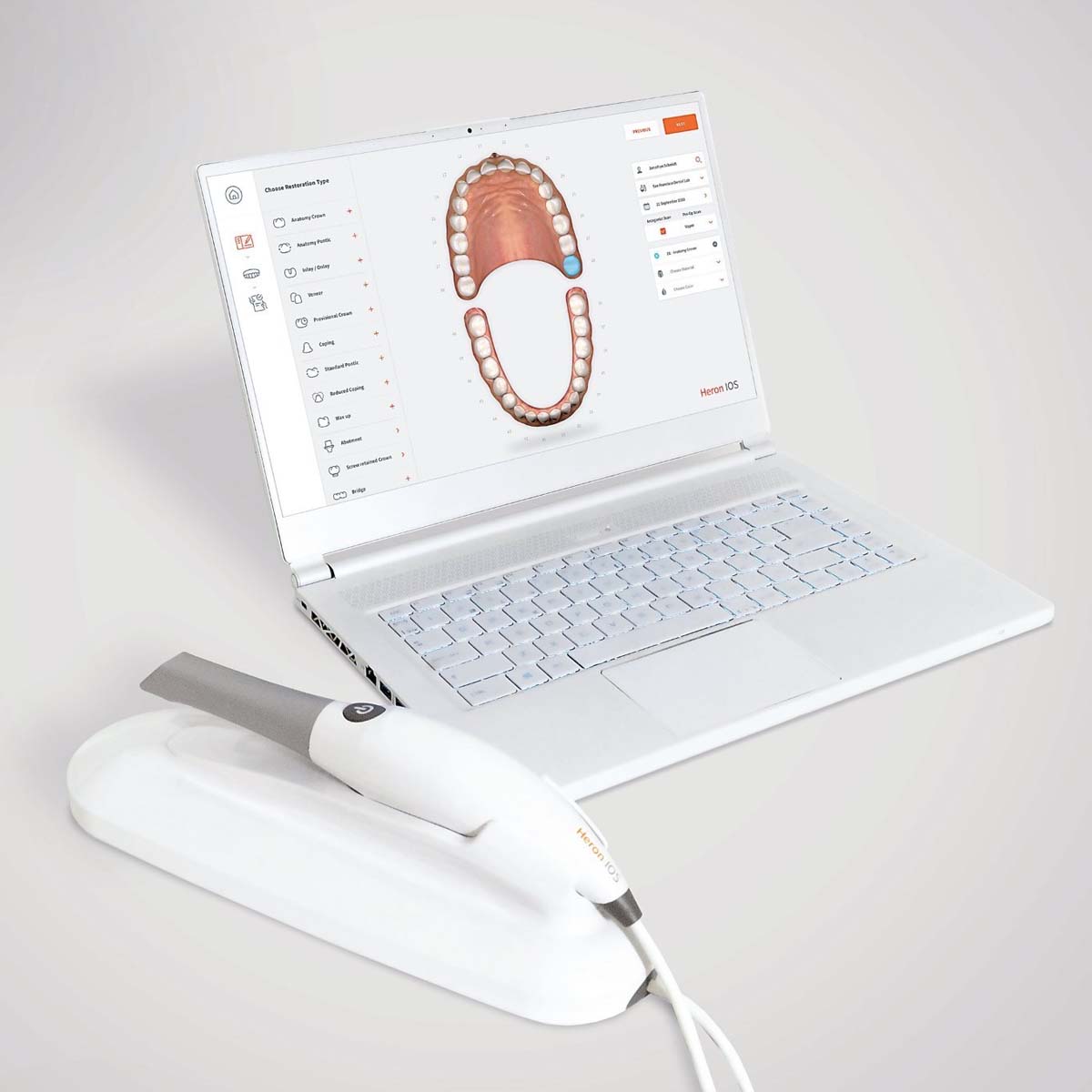
Heron Intraoral Scanner
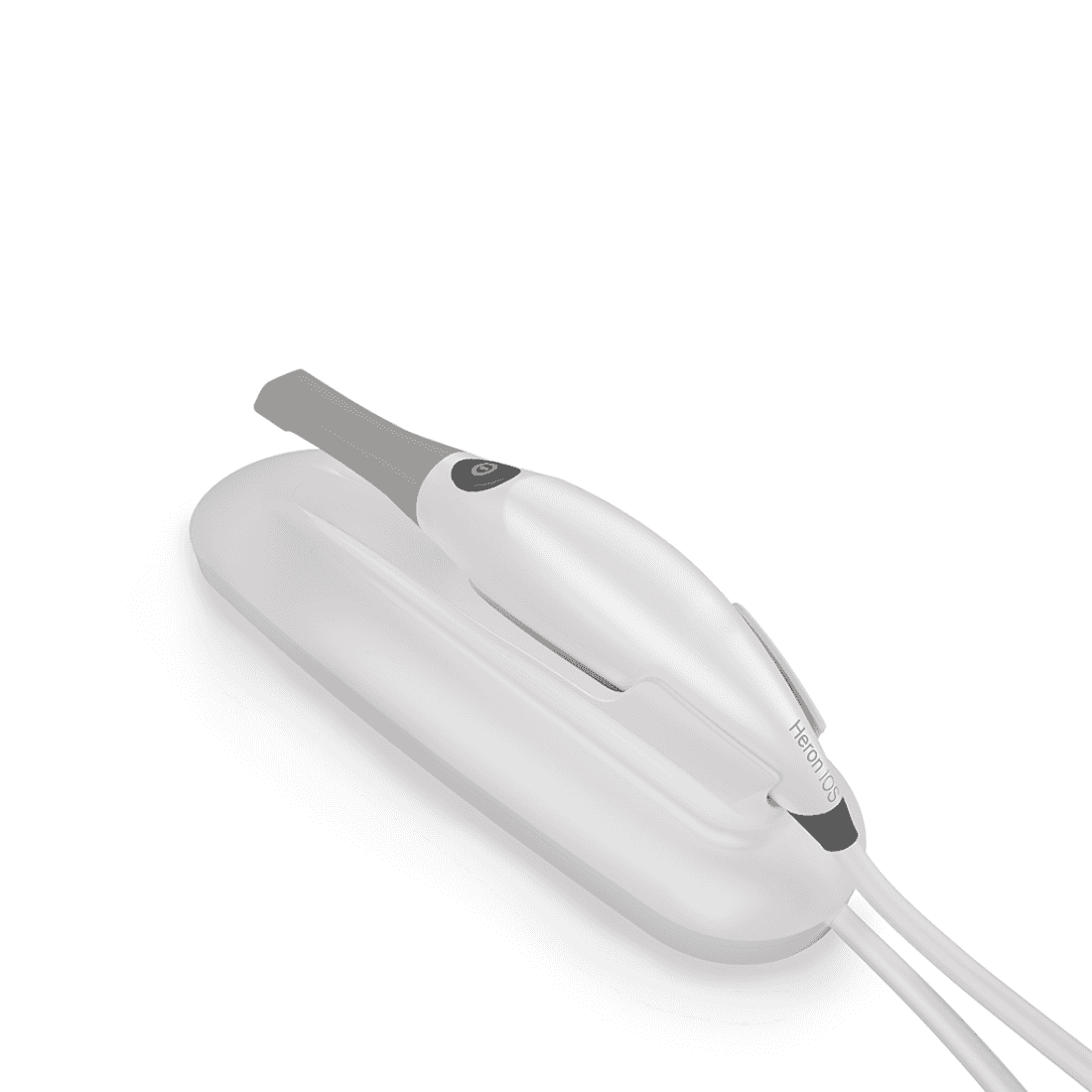
The Heron IOS intraoral scanner seamlessly integrates with CAD/CAM systems, delivering precise dental scans for restorations.
Enter pincode to verify fast clinic delivery & dispatch speed.
Key Highlights
Description
The Heron Intraoral Scanner (Heron IOS) is a chairside digital impression scanner built around active stereo imaging for precise 3D capture of teeth, gums, and bite. It is positioned for general practice and dental laboratory workflows that need an open, CAD/CAM-compatible scanner without the higher cost band of the flagship intraoral scanner brands.
The handpiece is compact, lightweight, and ergonomic, which keeps single-hand scanning comfortable during long appointments and multi-quadrant cases. Active stereo imaging handles the 3D capture step, and a reusable autoclavable scanner tip supports chairside infection-control protocols between patients without driving up per-case consumable cost. The scanner is engineered for fast, accurate capture with minimal physical effort from the operator, which shortens the learning curve for clinics moving from conventional impressions to digital scanning.
Heron IOS supports a wide range of indications, including crowns, copings, bridges, aligners, and other restorative or orthodontic cases. The scanner conforms to medical device safety standards and ships with a user-friendly case management application for organising patient scans, plus cloud integration for file transfer and lab collaboration. It is compatible with most dental CAD/CAM systems, so cases can flow into in-house mills, third-party labs, or aligner provider workflows without proprietary file conversion.
On Dentalkart, the Heron Intraoral Scanner is available through the Request Price workflow with competitive India pricing, COD on eligible orders, and pan-India delivery on 100% genuine, warranty-backed equipment. Compare more options in our intraoral scanner range, or browse more Heron products.
Frequently Asked Questions
What is the Heron IOS intraoral scanner used for?
The Heron IOS intraoral scanner is used to capture high-quality digital 3D intraoral scans for dental restoration and case analysis. The scans replace conventional putty impressions and feed into CAD/CAM workflows for crowns, bridges, copings, aligners, and other restorative or orthodontic cases in general practice and dental laboratories.
What dental indications does the Heron IOS support?
The Heron IOS supports crowns, copings, bridges, aligners, and a wide range of restorative and orthodontic indications. The same handpiece is used across cases, which keeps training simple and reduces the number of devices a clinic needs to maintain for chairside digital impressions and digital case planning.
Is the Heron scanner tip autoclavable?
Yes, the Heron Intraoral Scanner ships with a reusable autoclavable scanning tip. The tip is sterilised between patients to support chairside infection-control protocols, which keeps the consumable cost per patient lower compared with single-use disposable tip systems on some other scanner brands.
Does the Heron scanner integrate with CAD/CAM systems?
Yes, the Heron IOS is compatible with most dental CAD/CAM systems and includes cloud-based file transfer for lab and collaborator handoff. The case management application organises patient scans, and the export workflow plugs into in-house milling, third-party labs, or aligner provider portals without proprietary file conversion.
What imaging technology does the Heron IOS use?
The Heron Intraoral Scanner uses active stereo imaging to capture precise 3D scans. Active stereo uses structured light projected onto the dental arch and triangulated by camera sensors on the scanner head, which gives the scanner accurate surface capture without requiring reflective scanning powder during chairside use.
Key Features
Specifications
Scanner Type:
- Hand-held (chairside) scanner with active stereo imaging.
Design:
- Compact, lightweight, and ergonomic for easy operation with minimal physical effort.
Dimensions:
- Base Size: L 306mm, W 98mm, H 72mm
- Scanner Size: L 256mm, W 43mm, H 43mm
Power Requirement:
- DC5.0V / 4A (Power supply included).
Scanner Tip:
- Reusable, sterilizable using a steam autoclave.
Acquisition Method:
- Intraoral camera with active stereo imaging.
Color Scanning:
- 24-bit (8-bit per channel).
Scanning Process:
- No powder or spray is required for tooth preparation.
- Continuously scans and accumulates (stitching) depth and color data.
- Scanner-to-tooth distance: 0 – 12mm.
Operator Accessible Part:
- Handpiece with possible contact duration by the operator: 10 min ≤ t.
Patient Accessible Part (Type B Applied Part):
- Tip with possible contact duration by patient: 10 min ≤ t.
Computer – Scanner Interface:
- USB 3.0.
Output File Format:
- STL, PLY, OBJ.
Compatibility with CAD/CAM Systems:
- Open Architecture Output format compatible with most Dental CAD systems.
Computer Requirements:
- Operating System: Windows 10 (Excluding Windows 10 S, now defunct).
- CPU: Intel i7 – 4 Cores or greater (e.g., i7 8700).
- Memory: 16 GB of RAM or greater (DDR4 or better).
- GPU: NVIDIA GeForce Graphics Processor Series (GTX): 1070 or greater – At least 6 GB video memory, 2000 Series (RTX): 2060 or greater – At least 6 GB video memory.
Environment Conditions:
- Operating Temperature: 10°C ~ 40°C.
- Operating Relative Humidity: 10% ~ 80% (non-condensing).
- Storage Temperature: -20°C ~ 60°C.
- Storage Relative Humidity: 10% ~ 80% (non-condensing) for indoor use only.
Ingress Protection:
- IPX0 (Protection against harmful ingress of water: Ordinary equipment).
Protective Class:
- Class IIIb.
Overvoltage Category:
- I (Supplied from output DC source, max. 5 V. dc, 600 mA) of notebook or non-medical grade PC certified by IEC60950-1.
Max. Working Condition:
- Continuous cycles with image capture and transmission from/to Notebook or non-medical grade PC.
Scanner Tip Reusability:
- Autoclavable up to 50 times in a steam autoclave.
Power Input:
- 5V DC, 100-240V AC, 50-60Hz.
Cloud Integration:
- Integration with Heron Cloud for file transfer and collaboration with labs.
Calibration:
- Factory-calibrated; no additional calibration required.
Packaging
- 1 x Heron IOS System (Includes 3 Tips)
- 1 x USB 3.0 Cable
- 1 x AC/DC Power Adapter
Directions for Use
Connecting Heron™ IOS Intraoral Scanner to PC
Hardware Setup:
- Place the base on a stable surface.
- Securely position the Heron™ IOS handpiece in its base.
- Connect the AC/DC power adapter cable to the base (located underneath).
- Attach the provided USB 3.0 cable to the base (located underneath).
- Connect the other end of the USB cable to an available USB 3.0 port on your computer.
- Connect the AC/DC power adapter to a power outlet.
Power On:
- Turn on the Heron™ IOS scanner by pressing the power button on the handle.
Software Installation:
- Install the Heron™ IOS software.
- Follow the installation instructions provided with the software.
Configuration:
- Launch the Heron™ IOS software on your computer.
- Log in using your credentials if required.
Patient and Case Creation:
- Create a new patient account if not done previously.
- Follow the on-screen prompts to create a new case, providing necessary details and selecting the type of restoration.
Scanning Process:
- Follow the on-screen instructions for scanning each arch, ensuring stability and precision.
- Use the bite alignment feature if required, following the software prompts.
File Transfer (Optional):
- If connected to a lab via Heron Cloud, you can send the entire case to the lab directly from the software.
- Export scans and order forms to a location on your PC if needed.
Review and Finalization:
- Review the scans in the 3D viewer within the software.
- Add additional notes or attachments if required.
- Finalize the scan process according to the software instructions.
Cloud Integration (Optional):
- Utilize Heron Cloud for file transfer and collaboration with labs.
- Ensure the scanner is connected to the internet for seamless cloud integration.
Heron™ IOS Intraoral Scanner – User Guide:
Shutdown:
- Turn off the Heron™ IOS scanner by pressing the power button on the handle.
- Close the Heron™ IOS software on your computer.
Setting Up and Connecting:
- Place the base on a stable surface and securely position the Heron™ IOS handpiece in its base.
- Connect the AC/DC power adapter cable to the base (located underneath).
- Attach the provided USB 3.0 cable to the base (located underneath).
- Connect the other end of the USB cable to the computer.
- Connect the AC/DC power adapter to a power outlet.
Components Overview:
- Base and scanner
- Tip
- Scan Button
- Handpiece
- USB 3.0 Cable
- AC/DC Power Adapter
Settings:
- Configure language, 3D output format, picture formats, start page preference, and workflow options.
- View software and scanning module versions, check for manual updates, and access user manual and support.
System Configuration:
- Export/import patient database.
- Configure sounds during scanning.
- Manage users, including addition, editing, and deletion.
- Set up and select connections with labs.
- Customize order forms, including tooth numbering and shade systems.
Cloud Integration:
- Connect with Heron Cloud for file transfer and collaboration.
- Edit profile, change password, create groups, and customize case view settings.
Starting a Scan:
- Log in and create a new patient account on HeronCloud.com.
- Connect with a lab through the connections menu.
- Add HeronCloud™ connection to settings.
- Create a new case with order details and restoration selection.
- Follow on-screen instructions for scanning each arch, ensuring stability and precision.
- Use the bite alignment feature if required.
Case Management Software:
- Access the scans directly for export or use HeronCloud™ for file transfer.
- Navigate through patient and case views, applying filters if needed.
- Create new patients and cases, and manage them efficiently using the case management application.
Cleaning and Maintenance:
- Wipe down the scanner with EPA-approved disinfectants.
- Clean the tip with soapy water and sterilize using a steam autoclave.
- Dispose of the device following local environmental laws.
- No user maintenance is required; contact technical support for issues.
Scanner Operation Tips:
- Ensure proper tooth preparation; no powder or spray is needed.
- Maintain a steady hand for accurate scanning; restart if needed.
- Follow the scanning paths for mandibular and maxillary scans.
- Use the bite alignment feature for quadrant or full arch scans.
- Finalize the scan and review in the 3D viewer.
Package Contents
Standard clinic packaging: 1 x Heron Intraoral Scanner (Factory sealed box)
For detailed package breakdowns or bulk master-carton counts, contact our wholesale desk.
| Brand | Heron |
|---|---|
| Category | Equipments |
| SKU Code | HERXX00132 |
| Availability | In Stock (Ready for Dispatch) |
| Product Type | Dental Clinic & Hospital Supply |
Clinical Instructions
- Inspect the packaging seal before clinical application.
- Prepare the operative field following standard clinical isolation protocol.
- Apply according to manufacturer directions and standard restorative technique.
- Dispose of single-use items in bio-medical waste according to healthcare regulations.
Warranty & Return Policy
- 100% Genuine Guarantee: All items are procured directly from verified brand manufacturers & authorized distributors.
- 10-Day Replacement Window: Eligible for return or replacement if received damaged, defective or with broken seal.
- Manufacturer Warranty: Standard warranty applicable according to brand terms.
DentaHaus Benefits
100% Genuine Products
Direct supply from verified dental manufacturers
Best Wholesale Price
Special tiered pricing for clinics & doctors
Fast Pan-India Delivery
Express shipping across all PIN codes
GST Invoice Available
Claim input tax credit on all purchases
Questions & Answers
Get answers from dental experts and verified practitioners
What are the main clinical advantages of Heron Intraoral Scanner?
Key clinical advantages include ergonomic handling, reliable dimensional stability, compatibility with all standard restorative dental materials, and excellent clinical comfort for patients.
Payment Options
Ratings & Reviews
Verified feedback from practicing dentists & clinics
The material and handling consistency is top-notch. Our clinic orders in bulk batches and we get predictable, durable patient results every single time.
Very convenient product for everyday restorative and clinical procedures. The wholesale 10+ discount saves us substantial clinic supply overhead.
Recommended Products
Still exploring? These dental supplies might fit your clinic needs
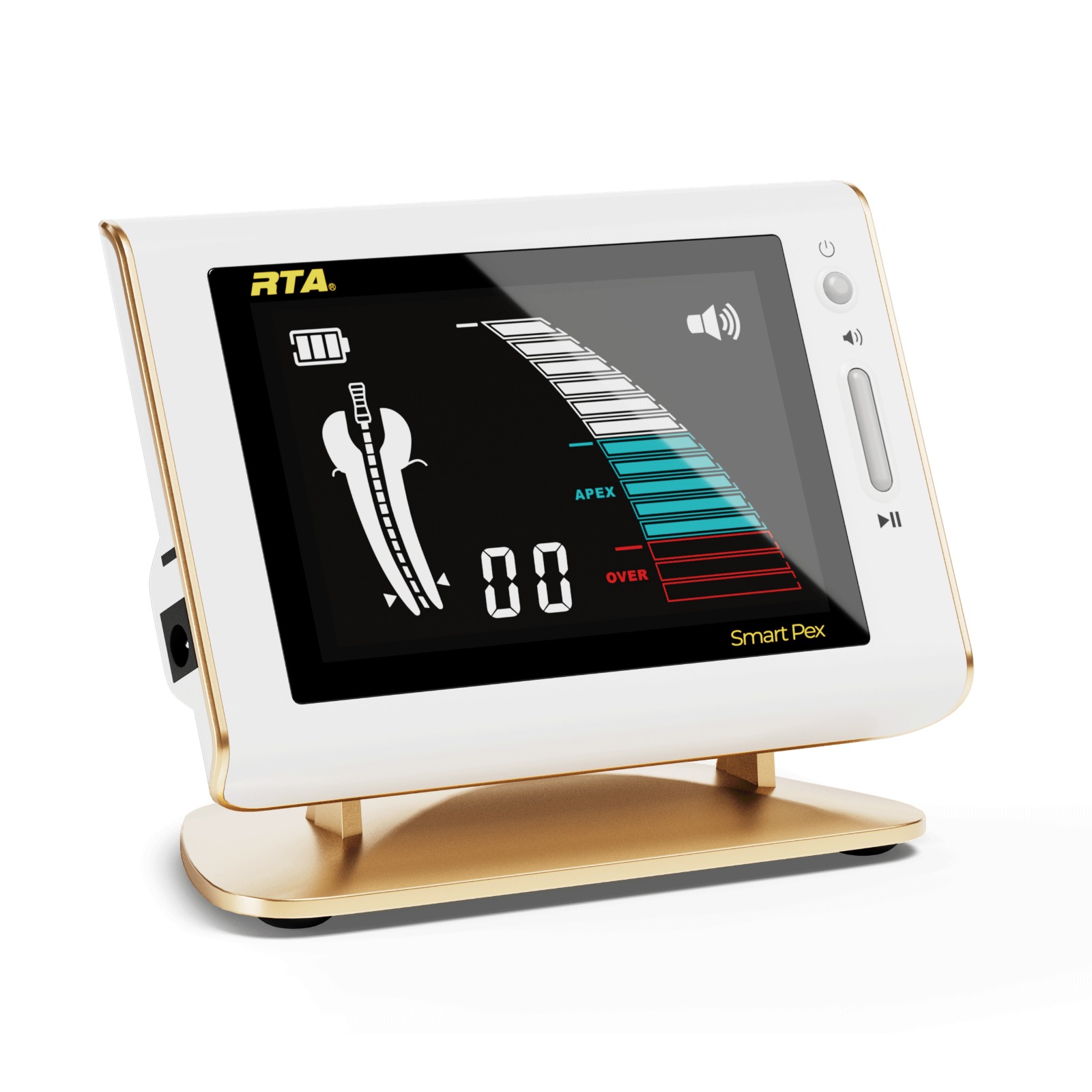
Woodpecker RTA Smart-Pex Apex Locator
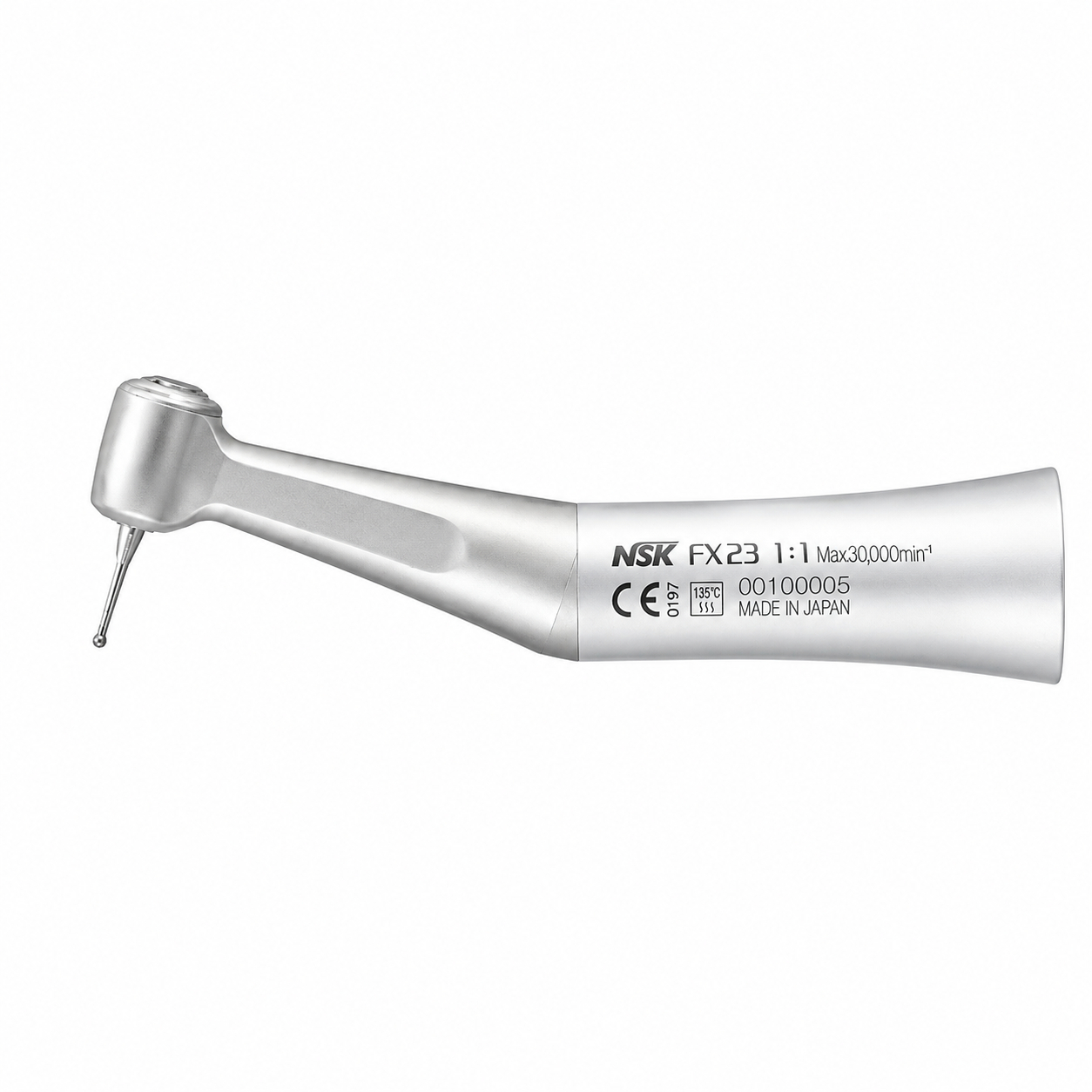
NSK FX-23 Contra-Angle Handpiece (C1056002)
Woodpecker RTA Smart-Pex Apex Locator By Waldent
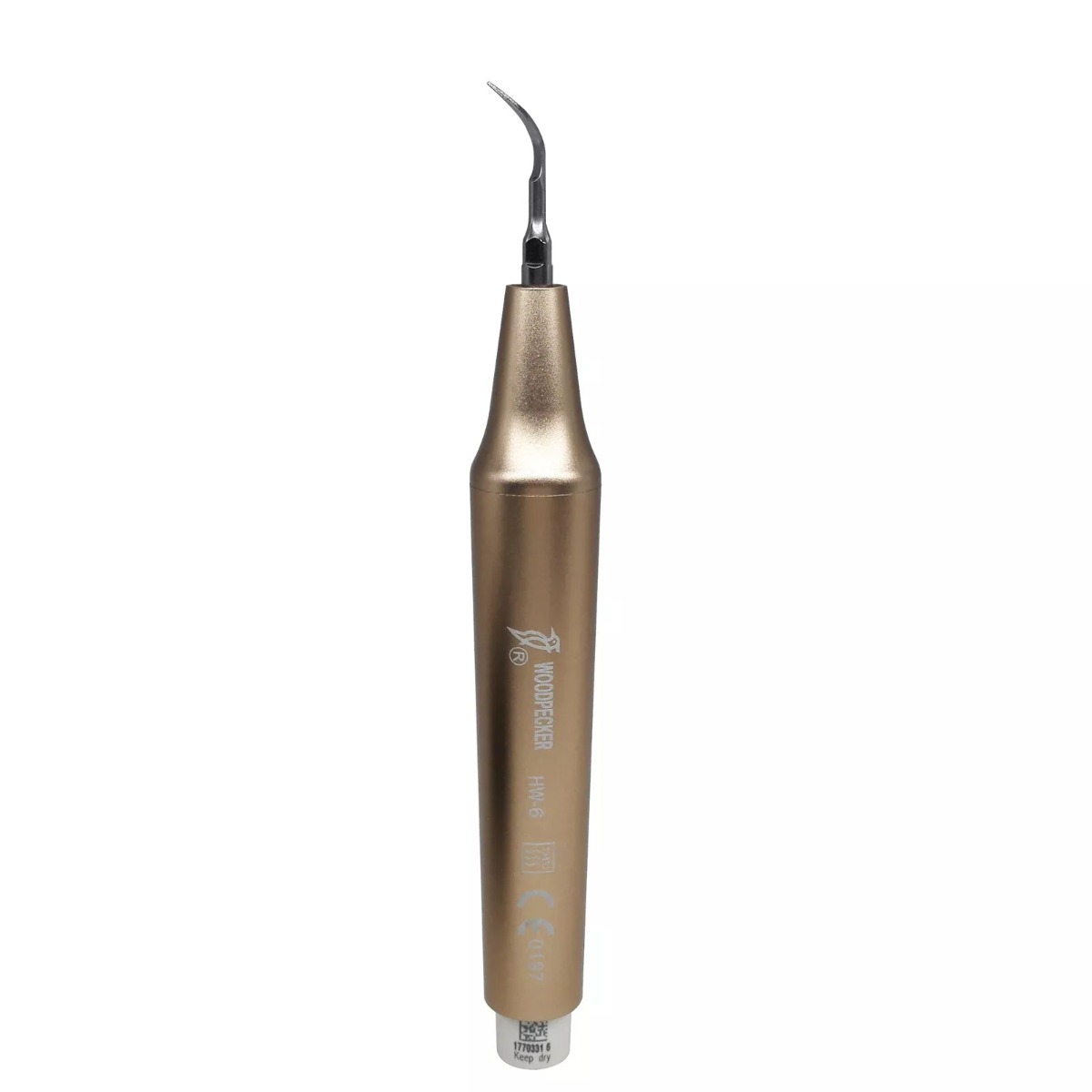
Woodpecker HW-6 Scaler Handpiece

Julldent Micro Surgical Forcep – Straight (041A)